Welcome
Welcome
Thank you for using the Wildlife Sightings app!
This free community app shows recent wildlife reports from the last six hours on a map.
The entries come from citizens in the region and help assess where encounters have recently occurred and where special attention may be needed.
Settings
Settings
Tap the green button at the top center and then the gear icon to open settings.
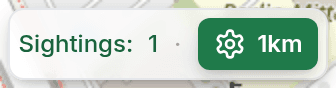
Sighting Radius
The sighting radius determines how far away wildlife sightings are shown on the map. It is also used to receive notifications only within this radius.
- 500m Very close area
- 1km Close area
- 3km Extended area
Reports for Notifications
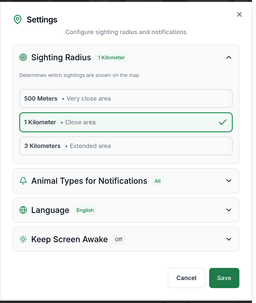
The app can notify you about new sightings and warnings near you. Choose which reports you want to be notified about.
Notifications also work when the app is running in the background. You can change notification settings at any time in your device's system settings.
Reports for Display
Decide which reports are shown on the map. For example, you can show only certain animal types or warnings — regardless of which ones you are notified about.
This filter only affects your own map view. If “All” is selected, types added later are shown automatically too.
Language
The app is available in all 24 official EU languages.
All settings are saved and automatically used on the next start.
Report
Report sighting
The large green button "🦌 Report sighting" at the bottom of the screen opens the report form.

Here you can enter all important information:
Animal or warning
First choose what you want to report: a wild animal or a warning (e.g. poison bait or oak processionary moth).
Time
Now, 5 minutes ago, 15 minutes ago, etc. or custom date/time (up to 7 days back)
Count
How many animals were there?
Behavior
What were the animals doing?
Movement Direction
When you select "Moving", a direction picker appears. Drag the arrow in the direction the animals are moving (e.g. North, Southwest). The direction is shown as an arrow on the map.
Notes
Additional details
The sighting is saved with your current GPS or manual location and the time. Other users nearby will automatically be notified about the sighting.
Location
Location Controls (top right)
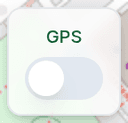
Enable GPS
The GPS switch enables automatic location tracking. When the switch is green, your location is continuously tracked and displayed on the map.
Tip: With poor GPS reception (e.g., indoors), you can use manual location mode.
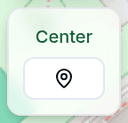
Center Map
The Center switch enables automatic centering of the map on your location. When both switches (GPS and Center) are green, the map automatically follows your movement.
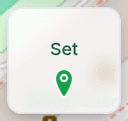
Set Manual Location
The location icon activates manual location mode. Manual mode can be useful to enter a precise location for sightings before reporting.
Tap on the icon and then on the desired spot on the map.
Manual mode automatically disables GPS. After reporting, you can re-enable GPS to use your current location.
Background Location
Background Location
In the iPhone and Android app you can optionally enable background location tracking to receive alerts matching your current location — even on the move and when the app is closed.
As long as background updates are active, the app matches newly reported sightings against your current location — not the place where you last opened the app. So you're alerted even while on the move, for example as a passenger in a car or on a bus or train.
The feature is off by default. You decide whether to turn it on, and you can turn it off again at any time.
Open the settings, expand the “Background Location” section and turn on the switch.
For background location tracking to work, the location permission must be set to “Always Allow”. The app guides you to the relevant device settings when needed.
Background location tracking is battery-optimized and only updates your location during significant movements (approx. 100m).
To keep background updates running reliably, the app should not be closed completely. On Android, location tracking stops as soon as you close the app completely (e.g. remove it from the app overview) — just open the app again. On iPhone, the system continues the updates automatically even after closing, but only on larger location changes (about 500 m).
On Android the system shows a persistent notification while location is being tracked. This is required by the system and not a bug.
Share
Share App
Share the app with friends, family, and neighbors so more people can learn about wildlife sightings in the area.
How to share the app: Tap the share icon at the bottom left of the map.
You can share the app via WhatsApp, email, SMS, or other messaging apps (iOS only). Alternatively, you can display a QR code that others can scan with their smartphone camera.
The more people use the app, the better the early warning system for wildlife in your area works.
Map
Sightings on the Map
Reported wildlife sightings are displayed as icons on the map. The colored border indicates the current status of the sighting.

Red Border - Not Yet Confirmed
A red border means that the sighting was recently reported and no other user has confirmed whether the animals are still there or not.

Green Border - Animals Have Left
A green border indicates that other users have reported that the animals are no longer at this location.

Red slash - Deleted sighting
A red diagonal slash over the marker means the reporter has withdrawn their sighting. Such sightings are shown like this for a few more minutes before they disappear from the map for good.
Arrow - Movement Direction
When a sighting has "Moving" reported as behavior, an arrow on the marker shows the direction of movement. The arrow color matches the status: red for active sightings, green when the animals have moved on.
Sighting Details
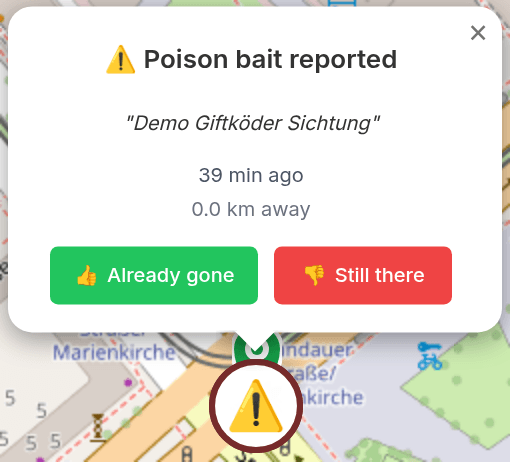
Tap on an icon to view details about the sighting: animal type, count, behavior, time, and distance.
Use the buttons to report whether the animals are still there:
- "Already gone" - The animals are no longer visible
- "Still there" - The animals are still at the location
You can still delete your own sightings for a few minutes after reporting: tap your sighting on the map and choose "Delete sighting" in the popup. A deleted sighting stays visible to other users for a few minutes before it disappears.
Poison Bait
Report poison bait
Via the Poison Bait tab you can report suspected poisoned bait to warn other dog and cat owners nearby.
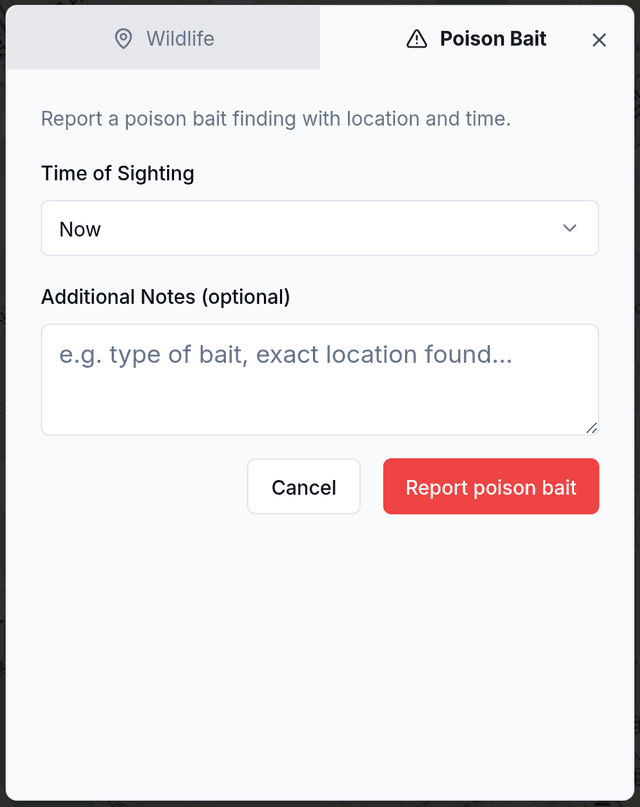
- Open the report dialog via the large button at the bottom of the map.
- Switch to the red 'Poison Bait' tab at the top of the dialog.
- Enter the time of finding and optionally a description, then confirm with 'Report poison bait'.
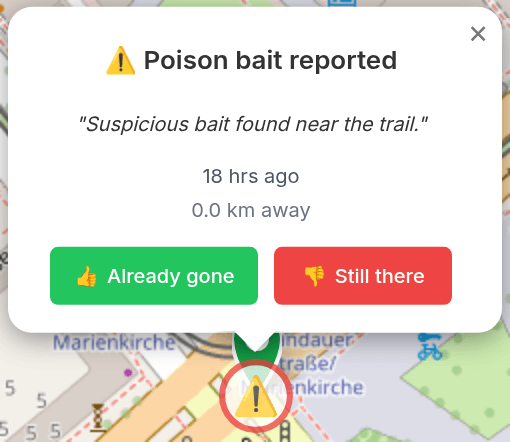
Poison bait reports remain visible for 3 days by default.
Other users can confirm with 'Still there' / 'Already gone' or report that the bait has been removed.
Oak processionary moth
Report oak processionary moth
The 'Warnings' tab lets you report an oak processionary moth infestation and warn others about the toxic stinging hairs. You choose between two hazard levels.
- Open the report dialog via the large button at the bottom of the map.
- Switch to the 'Warnings' tab at the top and select 'Oak processionary moth' from the list.
- Choose the type of hazard (active caterpillars or old nest), enter the time and confirm with 'Report oak processionary moth'.
Active caterpillars / procession
Acute danger from live caterpillars. The report stays visible for 90 days by default and is shown in a strong colour.
Old nest
Residual danger from abandoned nests – the stinging hairs stay active for a long time. The report stays visible for 365 days by default and is shown in a muted colour.
Other users can confirm with 'Still here' / 'Already gone' or report that the infestation has been removed. 'Still here' extends the display.
The stinging hairs of the oak processionary moth can cause skin irritation and allergic reactions. Please keep your distance and do not touch caterpillars or nests. Report infestations on public land to the responsible green-space authority.
Contact
More Questions or Suggestions?
I welcome your feedback and am happy to help with any issues.